
We have to complete a couple of easy steps to make sure everything works well.
Role needed for these steps:
Google Admin account administrator
1. Install Kincode AI Google Chat App for your workspace
-
As an Admin, go to the Google Workspace Marketplace.
-
Look for 'Kincode AI' or click on this link.
-
Install for your entire company clicking the 'Admin install' button:
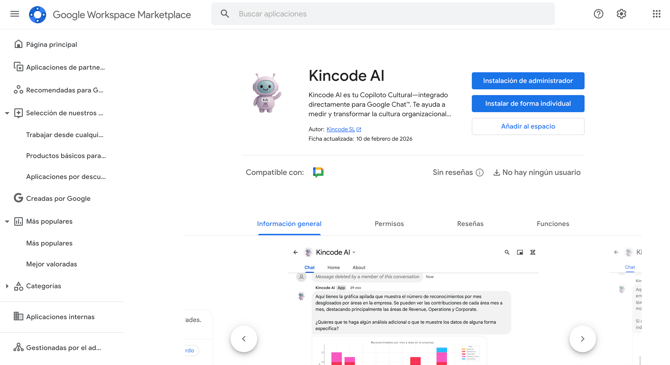
-
Continue to the next step:
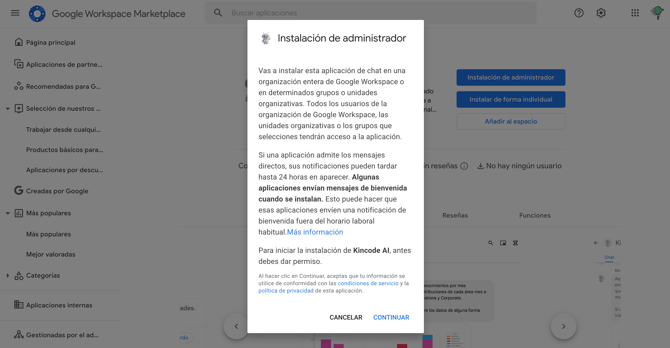
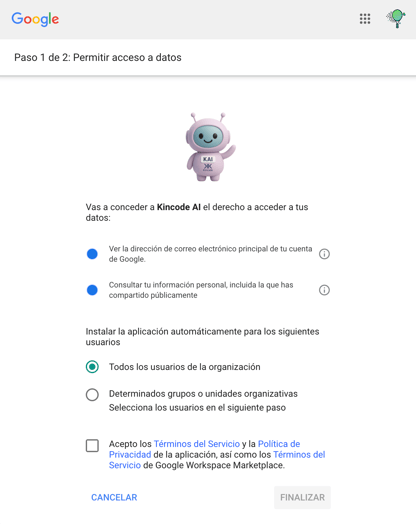
- Install to 'all users in the organization' and accept the privacy policy (feel free to ready it first), and click 'Finalize':
- Ready to go, the app has been installed in your Workspace:
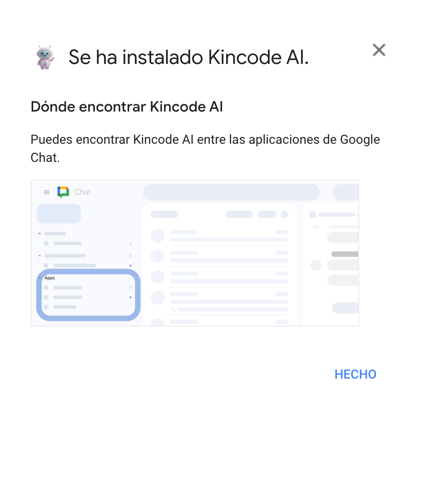
- All of your users will receive a welcome message from KAI.
2. Allow Kincode AI app to send proactive messages
-
As an Admin, go to the Google Workspace Admin console.
- Go to Security > Access Control and API > Domain delegation
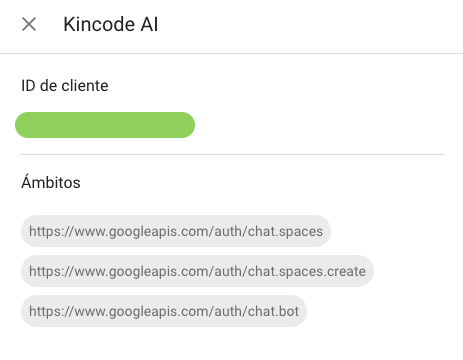
- Add our Client ID (928394865711) and the following scopes:
-
https://www.googleapis.com/auth/chat.bot -
https://www.googleapis.com/auth/chat.spaces.create -
https://www.googleapis.com/auth/chat.spaces
-
The configuration should show like the following screenshot:
You can find more details in the official documentation from Google:
-
How to update Domain wide delegation in their documentation: https://support.google.com/a/answer/162106